Checking a climber in
Climbers check themselves in on their phone. Your job is to read the code off their screen and match it to the board.
4 min read
In short
- Climbers check in and pay on their own phone. You never take money for a normal visit.
- Match the 6-digit code on their phone to the green Active row on your board.
- Glance at the photo on the row, then let them climb.
This is the part people expect to be complicated and it isn't. The climber does the checking in, on their own phone. They pick your gym in the Wall Pass app, their balance is charged, and they get a 6-digit code. You confirm that code is real and let them climb.
Climber checks in
In the app, paid from their balance
Gets a 6-digit code
Shown on their phone
Appears on your board
Tagged Active, same code
Codes match
Let them climb
At the desk, step by step
Step 1: Open the Visits screen
getwallpass.com/admin→Visits. Leave this tab open for your whole shift. It updates on its own, so you never need to refresh it.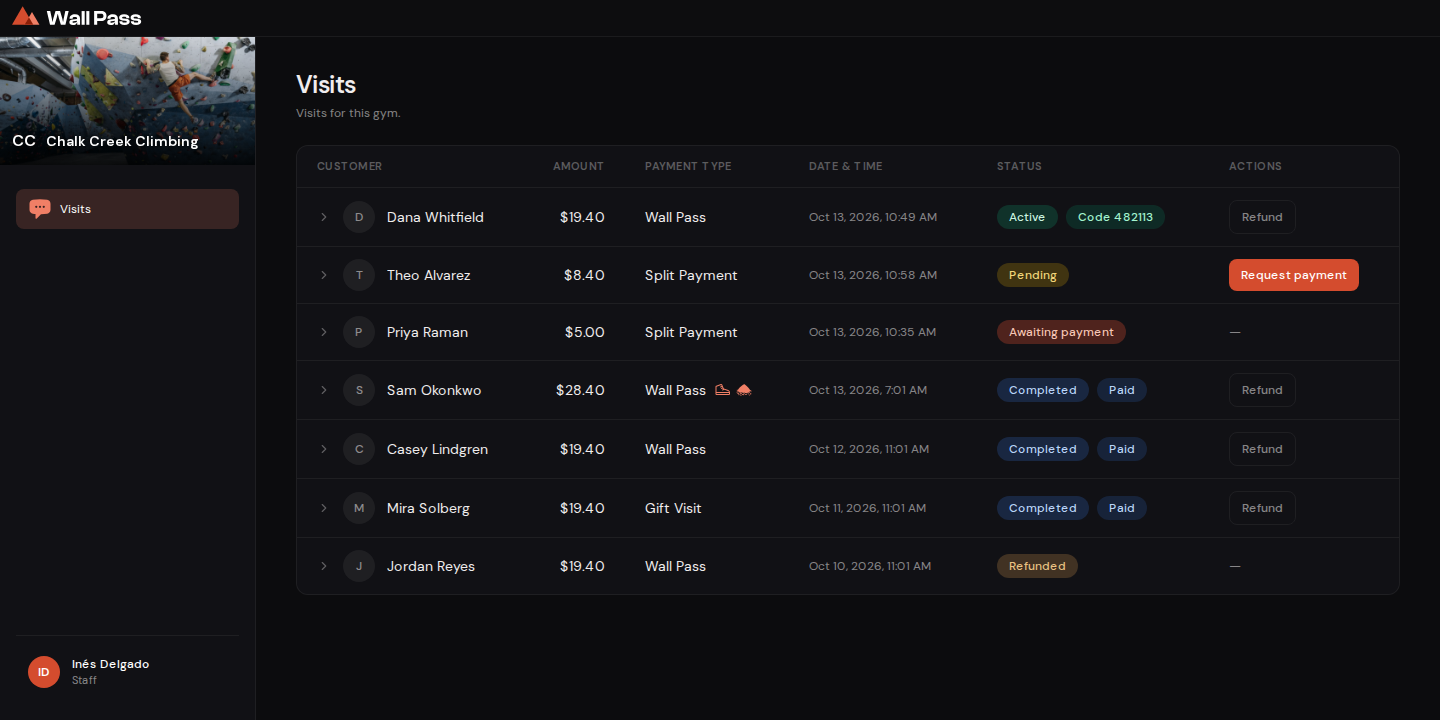
The visits board. Newest at the top. Tap to enlarge. - 1The status tag. Green Active means paid and climbing right now.
- 2The code to match against their phone.
- 3Buttons only appear when there's something to do. Here, a split payment the climber didn't finish.
Step 2: The climber shows you their code
It's a 6-digit number on their phone, in the Wall Pass app.
Step 3: Find them at the top of the board
A live check-in shows a green Active tag and their code right beside it. If the numbers match, they're paid up. Let them climb.
Step 4: Check the face matches the name
There's a photo and a name on the row. That's the whole identity check. There's a short page on it if you want the detail.
Reading the board
Every row is one visit. The colored tag tells you where it got to. These are the same tags you'll see on your board:
- Active
- Paid, checked in, currently climbing. The code beside it is the one on their phone.
- Completed
- A finished visit. Nothing to do. Visits end automatically after 10 hours or at midnight, whichever comes first.
- Pending
- A split payment the climber hasn't finished paying by card. See when a balance doesn't cover it.
- Awaiting payment
- You pressed Request payment, and the card prompt is back on the climber's phone. Wait for it to turn green.
- Refunded
- The visit was refunded and the money went back onto the climber's Wall Pass balance.
Rental gear
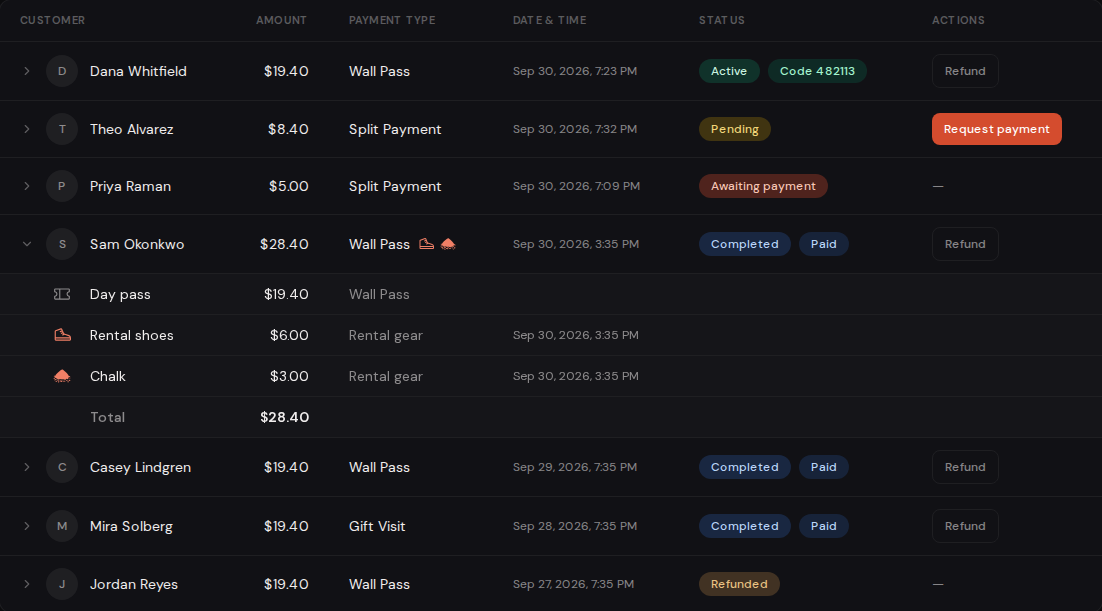
If your gym rents gear through Wall Pass, climbers add it when they check in and it's already paid for. You'll see small gear icons next to the payment type. Click any row to open it up and see exactly what they bought and for how much.
If something looks wrong
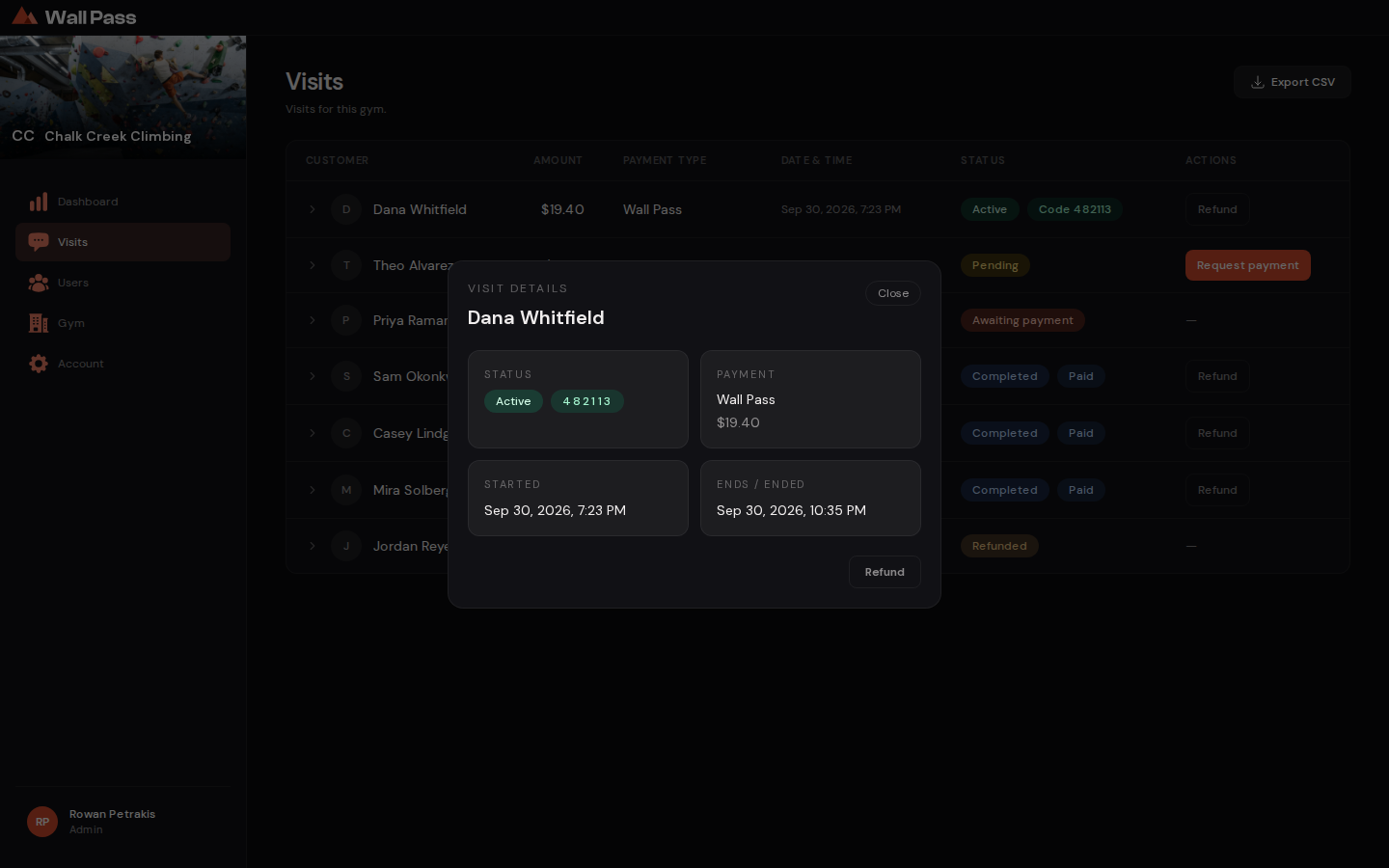
Click the status tag on any row to open the full detail: exact amount, when it started, when it ends, and the code on its own.
Video coming soon: How to check someone in, about 3 min.
Common questions
Their code isn't on the board at all.
They haven't finished checking in. Usually they're on the wrong gym, or they ran out of balance. Ask them to open the Wall Pass app and try again; the app tells them what's missing.
The code on their phone doesn't match the one on the board.
Trust the board. Codes change per visit, so an old screenshot won't match. Read the code off the board and ask them to confirm it.
They checked in for the wrong gym.
That visit is on the other gym's board, so you can't refund it from yours. Ask them to end it in the app with End visit, then check in here. For the money back, they can email support@getwallpass.com.
Nothing is updating.
The board is live, so a frozen screen usually means the internet dropped. Refresh once. If it's still empty, check you're on the right gym.